Use case · Substack · Newsletters
Does Substack Have Text to Speech?
Yes, but only on some posts. Substack's automated read-aloud works in English and uses the voice the writer picked. Here's what its Listen option covers, and how SayTXT can help you listen to article text you can access on desktop or phone.
Last updated:
The short answer
Substack has a Listen option on the web and in the app, but it isn't on every post. Automated read-aloud is only available for some publications and posts. So two newsletters in the same inbox can work completely differently: one has a play button, the other doesn't.
- Language: English only. Substack officially supports one language for automated read-aloud.
- Voices: six built-in voices. The writer chooses one, and readers have no official way to switch.
- Highlighting: none. You hear the post, but nothing on screen shows where you are.
When to use Substack's own audio
If the post has a Listen button and you like the voice, use it. There's nothing to install. If the writer recorded their own narration, that's the best version of the post you'll get: their emphasis, their pacing.
SayTXT is for everything else.
When SayTXT helps
- The post has no Listen option. SayTXT can read article text you have access to and that it can extract.
- The post isn't in English. SayTXT reads 31 languages.
- You want a voice you like. Choose from 50+ voices on iPhone or 10 on Android and in the Chrome extension, and set your own speed.
- You want to follow along. Word-by-word highlighting in the iPhone and Android apps and Chrome extension helps you keep your place.
- You want to finish later. Posts you import stay in your SayTXT library and pick up where you left off.
Substack Listen vs SayTXT
| Feature | Substack Listen | SayTXT for iPhone | SayTXT for Android | SayTXT Chrome extension |
|---|---|---|---|---|
| Works on | Posts with a Listen option | Accessible article text SayTXT can extract | Accessible article text SayTXT can extract | Accessible article text SayTXT can extract in Chrome |
| Languages | English | 31 | 31 | 31 |
| Voices | 6 built-in, writer picks | 50+, you pick | 10, you pick | 10, you pick |
| Highlighting | None | Word by word, all voices | Word by word, all voices | Word by word, all 10 voices |
| Resume later | — | Yes, from your library | Yes, from your library | — |
| Price | Free | Free, no word limit | Free, no word limit | Free |
“—” means this page does not compare that feature; it does not mean the feature is unavailable. Library resume applies to imported posts, not built-in browser pages.
How to listen to Substack on desktop (Chrome)
- Add SayTXT to Chrome. Install the free SayTXT extension from the Chrome Web Store.
- Pin it. Click the puzzle-piece Extensions icon at the top right of Chrome, then pin SayTXT so its icon stays in the toolbar.
- Open the full post. Go to substack.com and open the post you want to hear. Open the full post page, not the email preview, which is often only an excerpt.
- Try the writer's audio first. If the post has a Listen option and you like the voice, use it.
- Otherwise, click SayTXT. Click the SayTXT icon in the toolbar and choose Read page. A small player appears at the bottom right of the page, and the text is highlighted as it's read.
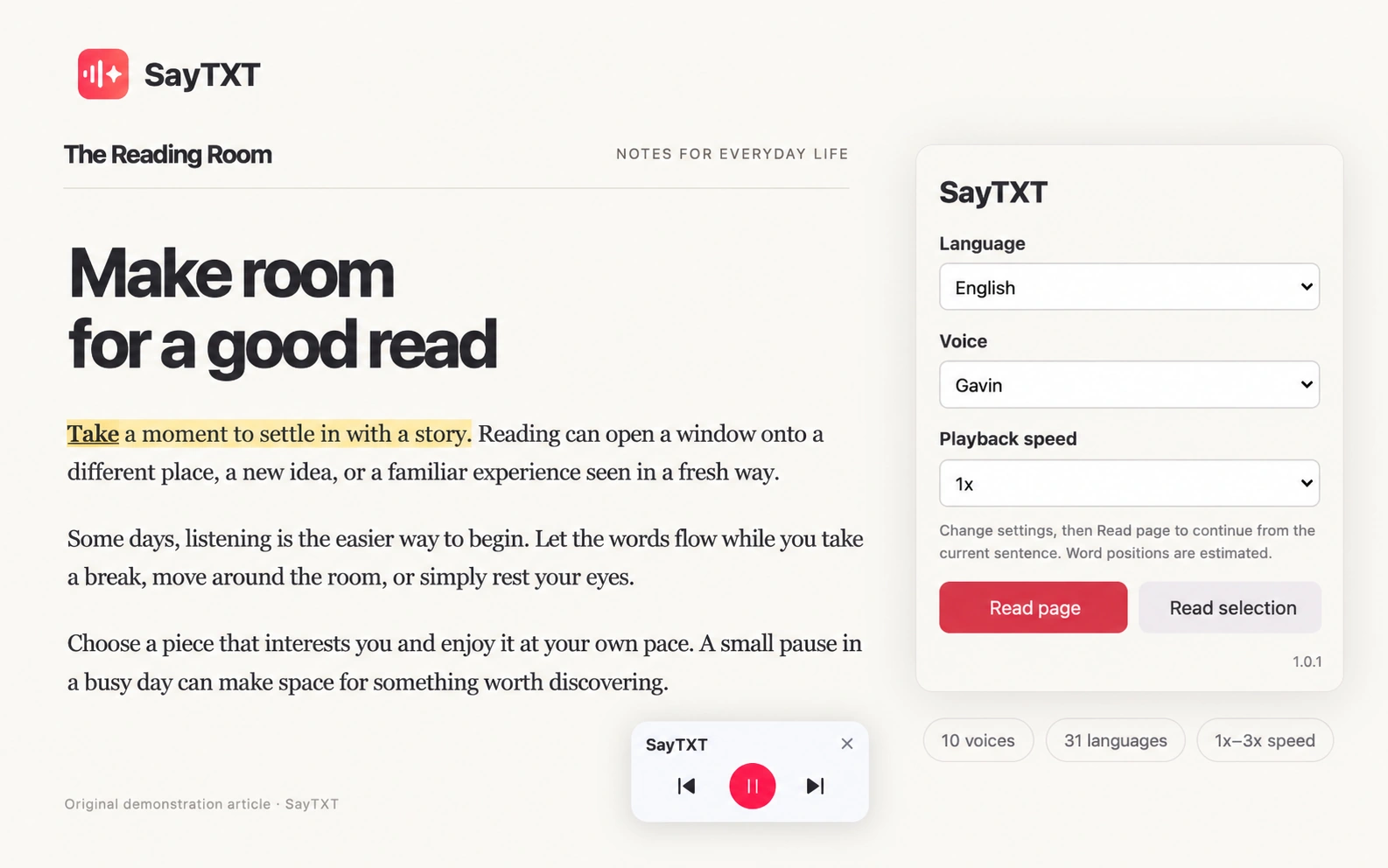
Start partway through. Select a sentence, right-click, and choose Read from here with SayTXT. To hear only a passage, choose Read selection with SayTXT.
How to listen to Substack on iPhone and Android
On iPhone
- Copy the post link. In the Substack app, open the post, tap the floating pill bar at the bottom of the screen, and tap Copy Link.
- Paste it into SayTXT. Open SayTXT. Under Import & Listen, tap Link, paste the link, and tap Play.
- Listen. SayTXT pulls out the article text, saves it to your library, and starts reading.
- Pick up later. Stopped halfway? Open the post from your SayTXT library and it continues where you left off.
On Android
Share the Substack post link to SayTXT, then start playback to extract the article text, save it to your library and listen. Reopen the imported post from your library to continue where you left off.
Reading a paid post? Open it in SayTXT's built-in browser instead and sign in to Substack there. SayTXT can read text your subscription lets you see and that it can extract. How the built-in browser works →
What SayTXT won't do
- It won't get around paywalls. SayTXT only reads text your account can already see. If you only have access to a preview, that's all it can read.
- Page clutter can slip in. Subscribe boxes or share buttons between sections are occasionally read out. On desktop, select just the article text and use Read selection with SayTXT.
- It reads text, not media. Embedded audio, video and images are skipped.
Frequently asked questions
Does Substack have text to speech?
Yes, on some posts. Substack offers a Listen option on the web and in the app, but automated read-aloud is not available for every publication or post. It reads in English only, with one of six built-in voices chosen by the writer.
Why doesn't my Substack post have a Listen button?
Substack's automated read-aloud is only available for some publications and posts, so a missing Listen button doesn't necessarily mean the writer turned it off. If a post has no Listen button, you can try the SayTXT Chrome extension on desktop, or import the post link into the SayTXT app on your phone.
How do writers turn on text to speech on Substack?
The feature is not available to every publication. If your publication has text-to-speech enabled, go to Settings, then Basics, and choose a Read-aloud voice. Readers can't enable it for a post that doesn't have it.
Can I change the voice Substack uses to read aloud?
Not as a reader. The writer picks one of Substack's six built-in voices for their publication. To hear a post in a voice you choose, use SayTXT: 50+ voices on iPhone, or 10 voices on Android and in the Chrome extension.
Does Substack read aloud in other languages?
Substack's automated read-aloud supports English only. SayTXT reads 31 languages, so you can listen to Substack posts written in Spanish, German, Japanese and more.
Does Substack highlight the text while it reads?
No. SayTXT offers word-by-word highlighting in its iPhone and Android apps and Chrome extension, so you can follow along on screen.
How do I listen to Substack on my computer?
Open the post in Chrome. If it has a Listen option, you can use it. If not, install the free SayTXT Chrome extension, click its icon in the toolbar, and choose Read page.
How do I listen to a Substack post on iPhone or Android?
On iPhone, open the post in the Substack app, tap the floating pill bar at the bottom and tap Copy Link. Then open SayTXT, tap Link under Import & Listen, paste the link, and tap Play. On Android, share the post link to SayTXT, then start playback to import and listen.
Can SayTXT read paid Substack posts?
Only the parts your subscription already lets you see. On desktop, sign in to Substack in Chrome first. On your phone, open the post in SayTXT's built-in browser and sign in there. SayTXT never gets around paywalls.
Can I stop and continue a Substack post later?
Yes. Posts you import into the SayTXT app are saved to your library and continue where you left off. This applies to imported library items, not pages opened in the built-in browser.
Can I listen to Substack offline?
Yes, on iPhone and Android: import the article through Link while online and make sure its text is saved in your SayTXT library. You can then generate speech and listen without an internet connection, even if you haven't played the whole article before. Pages opened in the built-in browser are not saved for offline listening.
Is SayTXT free?
Yes. SayTXT is 100% free, with no subscription, no word limit and no sign-up.
Listen to Substack and everything else you read on your phone.


Reading Substack on desktop? Add the free SayTXT extension to Chrome.